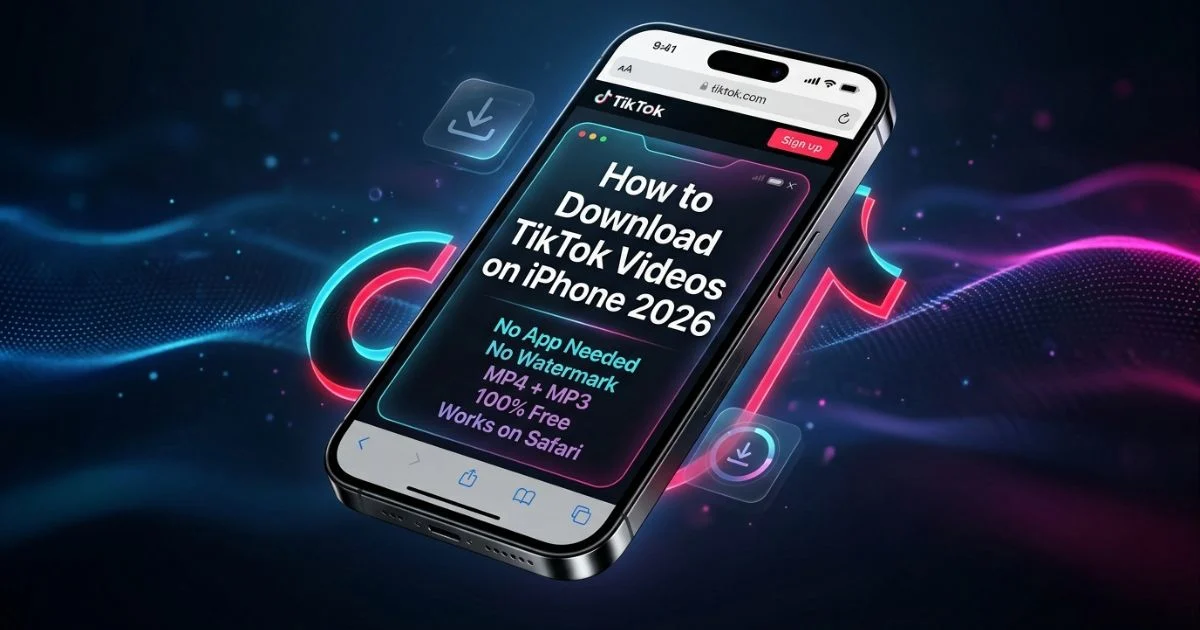
You found a TikTok video you absolutely love. Maybe it is a recipe you want to try later, a workout routine you keep going back to, or just a clip that made you laugh so hard you want to show your friend. You tap the share button, look for a download option — and either it is completely missing, or the video saves with that big ugly TikTok watermark slapped right across it.
If you are an iPhone user, you have probably also noticed that downloading anything on iOS feels more complicated than it needs to be. Safari behaves differently from Chrome. The Files app gets involved. Things end up in the wrong folder. It is frustrating.
This guide is going to fix all of that. I will show you the exact steps to download any TikTok video on your iPhone in 2026, without installing a single extra app, without creating any account, and without getting that watermark. The whole process takes about thirty seconds once you know what you are doing.
Why iPhone Users Struggle to Download TikTok Videos
Before jumping into the steps, it is worth understanding why this is even a problem — because once you understand it, the solution makes more sense.
TikTok's built-in download button has two big limitations on iPhone. First, many creators disable downloads on their videos, so the button simply does not appear even when you want it. Second, when the button does appear and you use it, TikTok adds its watermark to the saved video. That watermark includes the creator's username and the TikTok logo in a moving overlay. For personal viewing it looks cluttered, and if you ever want to repost the clip or share it elsewhere it creates problems.
Beyond that, Apple's iOS has its own quirks. Unlike Android, which drops downloads straight into a gallery folder, iPhone saves files through Safari into a Downloads folder inside the Files app. If you do not know where to look, the video seems to just disappear. A lot of people think the download failed when actually the file is sitting safely in Files, waiting to be moved.
Once you know these two things — use a proper downloader tool and know where iOS puts your files — everything clicks into place.
What You Will Need
Nothing complicated. You just need:
- - Your iPhone (any model, iOS 14 or later works fine)
- - Safari browser (already on your iPhone, no download needed)
- - The TikTok app or TikTok website open in another tab
- - Internet connection
- That is genuinely it. No third-party apps, no subscriptions, no sign-ups.
Step-by-Step: How to Download TikTok Videos on iPhone (Clean, No Watermark)
Step 1 — Find the TikTok Video You Want to Save
Open the TikTok app on your iPhone and scroll to the video you want to download. You can also find videos through TikTok's website in Safari if you prefer to stay in the browser the whole time.
Step 2 — Copy the Video Link
Tap the **Share** button. On most iPhones this looks like an arrow pointing to the right, sitting on the right side of the video screen. A menu will slide up from the bottom.
Look for **Copy Link** in that menu. It usually appears as a chain link icon. Tap it. The link is now copied to your iPhone clipboard — you will not see anything happen visually but it is there.
Step 3 — Open TikVideoSaver in Safari
Now open a new Safari tab and go to:
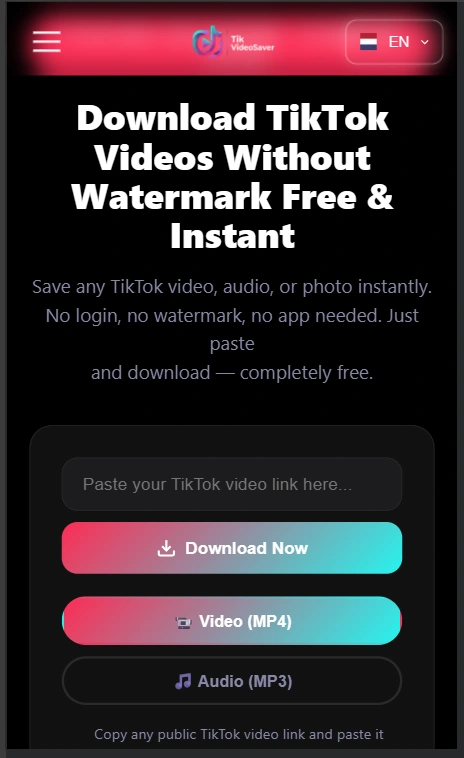
This is a free, browser-based tool designed exactly for this purpose. It works on iPhone without any app installation because it runs entirely in your browser.
Step 4 — Paste the Link and Hit Download
You will see a text box right on the homepage. Tap inside it, then press and hold for a moment until the **Paste** option appears. Tap Paste to drop in the TikTok link you copied.
Then tap the **Download** button.
Give it five to ten seconds. TikVideoSaver processes the link and pulls the video directly from TikTok's servers. When it is ready, you will see a download option appear on screen.
Step 5 — Save the Video to Your iPhone
Here is the part that confuses most iPhone users, so pay attention.
When the video appears on screen, **press and hold** on it. A menu will pop up with several options. Look for one of these:
- **Download Linked File** — this is the one you want
- Or tap the share icon on the video preview and choose **Save to Files**
Tap **Download Linked File**. Safari will download the MP4 file directly to your iPhone's Downloads folder.
Step 6 — Find Your Video and Move It to Camera Roll
Your video is now on your iPhone, but it is sitting in the Files app, not your Camera Roll. Here is how to get it where you actually want it:
1. Open the **Files** app on your iPhone (it has a blue folder icon)
2. Tap **Browse** at the bottom
3. Go to **On My iPhone** or **iCloud Drive** depending on your settings
4. Open the **Downloads** folder
5. Find your video file — it will be an MP4 file
6. Tap and hold the file, then tap **Share**
7. Scroll through the share sheet and tap **Save Video**
The video is now in your iPhone's Camera Roll, exactly like any other video you take yourself. You can watch it offline, share it in messages, AirDrop it, or do anything else you would normally do with a video.
---
How to Download TikTok Audio as MP3 on iPhone
Your TikTok might have a sound you love — a song snippet, a voiceover, a trending audio clip. TikVideoSaver also lets you save just the audio as an MP3 file. The process is almost identical.
Follow Steps 1 through 4 exactly as above. When the download options appear after processing, look for the **MP3** or **Audio** option instead of the video download. Tap that, and follow the same file-saving steps.
The MP3 file saves to your Downloads folder in Files, and you can then move it to your music library or use it however you like.
---
Common Problems iPhone Users Face (And How to Fix Them)
**Problem: I do not see "Download Linked File" when I hold on the video**
This sometimes happens depending on your Safari version or iOS settings. Try this instead: tap the share icon on the video preview, then look for **Save to Files** in the share sheet. Choose a location like On My iPhone and tap Save.
**Problem: The video downloaded but I cannot find it**
Open the Files app. Tap Browse, then On My iPhone, then Downloads. It will be there. If you still cannot find it, check iCloud Drive as Safari sometimes defaults to saving there.
**Problem: The link says "invalid" or nothing happens after I paste it**
This usually means the video was deleted by the creator, the account is private, or the link got corrupted when copying. Go back to TikTok, find the video again, and copy the link fresh. Make sure you are copying from the Share menu and not just copying the address bar URL.
**Problem: The video quality looks low**
The quality you receive depends on the original quality TikTok has stored for that video. If the video was uploaded in low resolution, that is what you get. Most recent TikTok videos are stored in HD and will download in excellent quality.
**Problem: Safari says "the download failed"**
This usually means your iPhone storage is full or your internet connection dropped mid-download. Free up some storage space, make sure you have a stable connection, and try again.
Can I Download Private TikTok Videos on iPhone?
No — and this applies to every downloader tool, not just TikVideoSaver. Private videos are only accessible to the account holder when they are logged in. No browser-based tool can access content that TikTok has locked behind a private account. If someone's account is set to private and you do not follow them, their videos are not accessible to download.
This is actually a good thing. It means your own private videos are also protected from being downloaded by strangers.
Is This Safe to Do on an iPhone?
Yes, completely. TikVideoSaver is a browser-based tool, which means nothing installs on your phone. There is no app, no executable file, no code running on your device. You are simply using your Safari browser to access a website that processes a TikTok link and gives you a download.
A few things to always keep in mind regardless of what tool you use:
Your iPhone will never be at risk from a website that simply offers a file download. The risk in downloading anything comes from running unknown software — and here, you are just saving an MP4 video file, the same format as any other video on your phone.
Always use TikVideoSaver from its official address: tikvideosaver.com. There are copycat sites out there that use similar names. The real one does not ask for your TikTok login, does not require personal information, and does not show aggressive pop-ups or redirects.
Is It Legal to Download TikTok Videos on iPhone?
This question comes up a lot and the honest answer is: it depends on what you do with the video afterward.
Saving a TikTok video to your own iPhone for personal viewing — rewatching it offline, showing a friend on your phone, keeping a recipe or tutorial for reference — is widely considered acceptable personal use in most countries. It is similar to recording something off television for personal viewing, which has been considered acceptable for decades.
Where it becomes a problem is if you re-upload someone else's video to another platform, use it in your own content without permission, or share it publicly and claim it as your own. That crosses into copyright territory and is not something TikVideoSaver encourages or supports.
The tool only works on public TikTok content. It cannot access private accounts. The intention is purely personal offline access.
Why TikVideoSaver Works Better Than TikTok's Own Download Button
It is fair to ask why you would not just use TikTok's built-in download button. Here is a quick honest comparison:
TikTok's built-in button is convenient when it appears, but it only shows up when the creator has allowed downloads — which many do not. When it does work, it adds a watermark that follows the video wherever it goes. The saved file also lives inside TikTok's own app storage, not your real Camera Roll, which means it can be lost if you uninstall the app.
TikVideoSaver works on any public TikTok video regardless of whether the creator has enabled downloads, saves a clean file with no watermark, and puts the MP4 directly into your phone's own storage. It also handles MP3 audio extraction in the same simple process.
For casual use the built-in button is fine. For everything else, a dedicated tool gives you more control over your own content collection.
Final Thoughts
Downloading TikTok videos on iPhone is not as complicated as it first seems. The confusion mostly comes from iOS handling file downloads differently than Android, and from TikTok's watermark system getting in the way.
Once you have done it once using the steps in this guide, the whole process becomes second nature. Copy the link, open TikVideoSaver, paste and download, move the file to your Camera Roll. Thirty seconds from start to finish.
Whether you are saving cooking tutorials, workout videos, travel inspiration, or just clips that make you laugh, TikVideoSaver makes sure those videos are on your phone and ready whenever you want them — with no watermark, no app required, and no cost.
Try it now at tikvideosaver.com — it takes less than a minute.
Frequently Asked Questions
Do I need to install any app to download TikTok videos on iPhone?
No. TikVideoSaver works entirely in your Safari browser. Nothing installs on your device.
Will the downloaded video have a TikTok watermark?
No. TikVideoSaver removes the watermark and gives you a clean MP4 file.
Can I download TikTok videos on older iPhones?
Yes. As long as your iPhone runs iOS 14 or later and has Safari, it will work.
Where does the downloaded video go on my iPhone?
It saves to your Downloads folder in the Files app. You can then move it to your Camera Roll by tapping Share on the file and choosing Save Video.
Is TikVideoSaver free?
Yes, completely free. No subscription, no account, no payment.